
I’ve spent years diagnosing why games crash at the worst possible moments.
You’re probably here because something broke and you need to figure out what’s causing it without risking your actual system. Testing fixes on a live setup? That’s how you make things worse.
Here’s the thing: simulation programs let you recreate the exact conditions that trigger your problem. You can test solutions in a safe space before touching anything real.
I’ve used these tools to track down everything from obscure driver conflicts to hardware compatibility issues that shouldn’t exist but somehow do.
This guide shows you how to find the right simulation program for your specific problem. I’ll walk you through what to look for, where to download it safely, and how to actually use it to pinpoint what’s going wrong.
We test these methods on real systems at PBL Emulator. We deal with the same crashes and glitches you’re facing. That’s how I know what works and what wastes your time.
You’ll learn which simulation tools handle different types of issues, how to set them up correctly, and how to interpret what they’re telling you about your system.
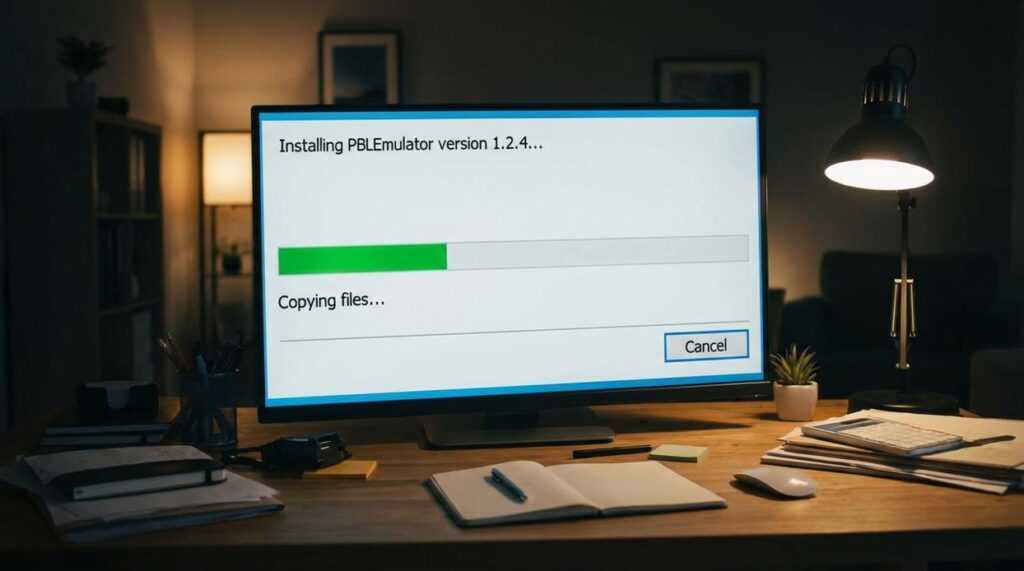
And if you want to install pblemulator specifically, I’ll show you exactly how to do that too.
No guesswork. Just a clear path from problem to solution.
What Are System Simulators and Why Are They Essential for Troubleshooting?
You ever brick your main PC trying to install a sketchy mod at 2 AM?
Yeah, me too. Not my proudest moment.
That’s where system simulators come in. And before you zone out thinking this is some boring tech lecture, stick with me. This stuff actually saves your butt when you want to mess around without consequences.
What’s a simulator anyway?
A system simulator (or emulator, same thing really) is software that mimics another device’s hardware and software on your computer. Think of it like method acting for your PC. It pretends to be a PlayStation, an old Windows XP machine, or whatever else you need.
The magic part? You can break things without actually breaking things.
The sandbox where nothing matters
Here’s what makes simulators so useful. They create what I call a digital sandbox. It’s an isolated space where you can test whatever you want. Your main system stays untouched while you go wild in the simulator.
(Kind of like Vegas, but for your computer.)
Want to install pblemulator and test a dozen different configurations? Go for it. The worst that happens is you restart the simulator and try again.
Real situations where this saves you
Let me give you some examples that actually matter.
Say you’re gaming and you found this graphics mod that promises better framerates. Sounds great until it crashes your game and corrupts your save files. With a simulator, you test it first. If it works, you apply it to your main setup. If it doesn’t, you just learned something without losing 60 hours of progress.
Or maybe you’re doing software development. A user reports a bug that only happens on their specific setup. Instead of buying their exact hardware, you spin up a simulator that matches their configuration. You reproduce the bug, fix it, and ship the update. Problem solved.
For IT support folks, this is even better. You need to run legacy software on modern hardware? Set up a simulator with the old operating system. Test compatibility without touching production systems.
The beauty of pblemulator and similar tools is that they let you fail safely. And failing safely is how you learn fast.
Choosing the Right Simulator: 5 Critical Features for Effective Troubleshooting
You’ve decided to install pblemulator or another simulation tool.
Good call.
But here’s where most people mess up. They grab the first option they find and wonder why their troubleshooting sessions turn into guessing games.
I’ve tested dozens of simulators over the years. Some are solid. Others are basically useless for real troubleshooting work.
Now, some folks will tell you that any simulator works fine as long as you know what you’re doing. They say the tool doesn’t matter if you understand the underlying system.
That’s partially true. But it ignores reality.
A bad simulator wastes your time. It gives you false readings and sends you down rabbit holes that lead nowhere.
So what actually matters when you’re picking one? Let me break it down.
The 5 Features That Actually Matter
1. High-Fidelity Accuracy
Your simulator needs to match the real system’s behavior. Not kind of match it. Actually match it.
If the simulation is off by even a small margin, you’ll draw wrong conclusions. You’ll fix problems that don’t exist and miss the ones that do. In the world of game development, a poorly calibrated Pblemulator can lead to catastrophic design flaws, where minor inaccuracies skew your understanding and force you to address non-issues while neglecting critical problems lurking beneath the surface.
Look for projects with proven compatibility records. Check user reports about accuracy before you commit.
2. Robust Debugging Tools
This is where troubleshooting happens.
You need save states so you can snapshot the exact moment something breaks. Memory viewers let you see what’s actually happening under the hood. And detailed log files? Those capture the errors that matter.
Without these, you’re just running the simulation and hoping you notice when something goes wrong (which you probably won’t).
3. Performance and Configuration Options
Here’s something most guides skip.
You need control over CPU, GPU, and RAM allocation. Why? Because sometimes you’re testing how a system behaves on lower-spec hardware. Or you’re hunting for performance bottlenecks that only show up under specific conditions.
A simulator that locks you into one configuration is basically a toy.
4. Active Development and Community Support
Check the update history before you download anything.
If the last update was three years ago, move on. You want a project that’s actively maintained. Bugs get fixed. New features get added. And when you hit a wall, there’s actually someone around to help.
An active forum or community means you’re not troubleshooting alone.
5. Clean and Secure Installation
This should be obvious but apparently it’s not.
Download from the official source. Make sure it’s a standalone install. No bundled toolbars. No adware. No mystery software that tags along.
If the download feels sketchy, it probably is.
| Feature | Why It Matters | What to Look For |
|---|---|---|
| ——— | —————- | —————— |
| Accuracy | Prevents false conclusions | User reviews on compatibility |
| Debugging Tools | Enables actual troubleshooting | Save states and memory viewers |
| Configuration Control | Tests specific scenarios | Adjustable resource allocation |
| Active Support | Ensures ongoing reliability | Recent updates and forums |
| Clean Install | Protects your system | Official downloads only |
What Happens After You Choose?
Okay, so you’ve picked a simulator with these features.
What’s next?
You’ll probably want to know how to actually use those debugging tools. Save states are great, but knowing when to create them is what separates effective troubleshooting from random clicking.
And those Tips Pblemulator users share? They usually assume you already understand the basics of memory viewing and log analysis.
Start by learning one debugging feature at a time. Don’t try to master everything at once. Get comfortable with save states first. Then move to memory viewers once you understand what you’re looking at.
The configuration options can wait until you’ve got a specific performance question you’re trying to answer.
Where to Safely Download Trusted Simulation Programs
Let me tell you about the worst download experience I ever had.
I was 16 and wanted to install pblemulator software for the first time. Clicked what I thought was the download button. Ended up with three toolbars, a browser hijacker, and something that kept trying to sell me antivirus software I definitely didn’t need.
Fun times.
Here’s the deal. Finding safe downloads isn’t rocket science. But the internet is full of sites that REALLY want you to click the wrong button.
Some people say all download sites are basically the same and you’re overthinking it. Just grab the file and move on.
Yeah, no.
That’s how you end up reformatting your hard drive at 2 AM on a Tuesday. Ask me how I know.
Official Sources First
This is your safety net.
Go straight to the official project website. Or check their official GitHub repository. These are the only places where you know exactly what you’re getting. For the most accurate updates and details about the highly anticipated features of the upcoming game, including the intriguing Release Date Pblemulator, it’s essential to visit the official project website or their GitHub repository.
No middleman. No sketchy wrapper files. Just the actual program.
Community Hubs That Don’t Suck

Look, sometimes the official site is down or hard to find. I get it.
Well-established community sites can work as backups. The good ones link directly to official download pages anyway. They’re basically doing the work of finding the real source for you.
Just make sure the site has been around for a while and has an actual community behind it.
Red Flags You Can’t Ignore
Here’s where things get obvious (but people still fall for this stuff).
If the download comes wrapped in an .exe installer that wants to add “helpful” programs? Run away. That’s not helpful. That’s garbage you don’t want.
Pop-up ads everywhere? Fake download buttons that outnumber the real one? That’s a hard pass.
And if ANY site asks you to fill out a survey or hand over personal info just to download a free program? Come on. You know better than that.
The Legal Stuff Nobody Wants to Talk About
The programs themselves are legal. Full stop.
But here’s the catch. Using copyrighted BIOS files or games you don’t own? That’s where things get messy legally.
For testing and troubleshooting, stick with software you actually own. It keeps everything above board and honestly just works better anyway.
The release date pblemulator shows how official sources handle distribution properly.
Stay smart out there.
A Practical Workflow: Using a Simulator to Solve a Problem
Most people treat simulators like toys.
I treat them like diagnostic tools.
When something breaks on your main system, you’ve got two choices. You can either mess around with your actual setup (and risk making things worse) or you can test fixes in a safe space first.
Here’s how I do it.
Step 1: Form a Hypothesis
Start by defining what you think is wrong. Don’t just say “my game crashes.” Get specific. Maybe you believe the latest graphics driver update is causing the problem.
Write it down. It helps.
Step 2: Replicate the Environment
This is where most people skip ahead and regret it later.
Configure your simulator to match the system where the error happens. Same OS version. Similar hardware specs if possible. Then install pblemulator, load up the game, and add that suspected driver version.
You need the conditions to be as close as possible.
Step 3: Trigger the Fault
Now try to make it crash. Run the game the same way you did when it failed on your real machine.
If nothing happens, your hypothesis might be wrong. That’s fine. Adjust and try again.
Step 4: Isolate and Test
When the error shows up, change one thing at a time. Roll back to an older driver. Test again. Does the crash stop?
If yes, you found your culprit.
Step 5: Apply the Solution
Once you’ve confirmed the fix works in the simulator, apply it to your actual system. You’ll know it works because you already tested it. After validating the solution in your environment, be sure to check out the Tips Pblemulator for additional insights on optimizing your gameplay experience. For the full picture, I lay it all out in Pblemulator Upgrades.
No guesswork. No crossing your fingers.
Troubleshoot with Confidence and Precision
You came here to find a program that simulates system behaviors for troubleshooting. Now you have that roadmap.
I know the frustration of diagnosing issues through guesswork. Making changes on a live system is risky and stressful.
System simulators solve this problem. They give you a controlled space to test and repeat scenarios without consequences. You can break things and learn from them.
That’s how you become a better problem solver.
Use the criteria from this guide to pick the right tool for your needs. Compare features against what you’re actually trying to fix. Some simulators handle network issues better while others excel at hardware diagnostics.
install pblemulator if you need a reliable starting point that covers most common scenarios.
Take control of your system’s stability today. Stop guessing and start testing in an environment where mistakes don’t cost you downtime.
You now have the knowledge to troubleshoot with precision instead of panic.
 Jexor Durnhaven writes the kind of player strategy guides content that people actually send to each other. Not because it's flashy or controversial, but because it's the sort of thing where you read it and immediately think of three people who need to see it. Jexor has a talent for identifying the questions that a lot of people have but haven't quite figured out how to articulate yet — and then answering them properly.
They covers a lot of ground: Player Strategy Guides, Expert Opinions, Esports Highlights, and plenty of adjacent territory that doesn't always get treated with the same seriousness. The consistency across all of it is a certain kind of respect for the reader. Jexor doesn't assume people are stupid, and they doesn't assume they know everything either. They writes for someone who is genuinely trying to figure something out — because that's usually who's actually reading. That assumption shapes everything from how they structures an explanation to how much background they includes before getting to the point.
Beyond the practical stuff, there's something in Jexor's writing that reflects a real investment in the subject — not performed enthusiasm, but the kind of sustained interest that produces insight over time. They has been paying attention to player strategy guides long enough that they notices things a more casual observer would miss. That depth shows up in the work in ways that are hard to fake.
Jexor Durnhaven writes the kind of player strategy guides content that people actually send to each other. Not because it's flashy or controversial, but because it's the sort of thing where you read it and immediately think of three people who need to see it. Jexor has a talent for identifying the questions that a lot of people have but haven't quite figured out how to articulate yet — and then answering them properly.
They covers a lot of ground: Player Strategy Guides, Expert Opinions, Esports Highlights, and plenty of adjacent territory that doesn't always get treated with the same seriousness. The consistency across all of it is a certain kind of respect for the reader. Jexor doesn't assume people are stupid, and they doesn't assume they know everything either. They writes for someone who is genuinely trying to figure something out — because that's usually who's actually reading. That assumption shapes everything from how they structures an explanation to how much background they includes before getting to the point.
Beyond the practical stuff, there's something in Jexor's writing that reflects a real investment in the subject — not performed enthusiasm, but the kind of sustained interest that produces insight over time. They has been paying attention to player strategy guides long enough that they notices things a more casual observer would miss. That depth shows up in the work in ways that are hard to fake.